Docs
Documentation
Last updated: 2026.07.08
Upgrading from the original autoParallax
Upgrading from the original autoParallax is free.
If you bought on Gumroad
Use the 100% discount code we sent you by email to purchase and download autoParallax 2 as a new order. Your license key will arrive by email.
If you bought on BOOTH
Download v2 from the product page and activate it with your order number.
Installation
- Launch After Effects and choose File → Scripts → Install ScriptUI Panel, then select the downloaded jsxbin file.
- Restart After Effects.
First launch & license activation
- First, make sure “Allow Scripts to Write Files and Access Network” is enabled in Preferences.
- Choose Window → autoParallax2.jsxbin.
On first launch you'll be asked to enter your license.
- Bought on Gumroad
- Enter the license key emailed to you at purchase.
- Bought on BOOTH
- Enter the order number emailed to you at purchase.
If activation fails with an E2 or E4 error, security software is usually the cause. Temporarily disable it and try again.
Panel controls
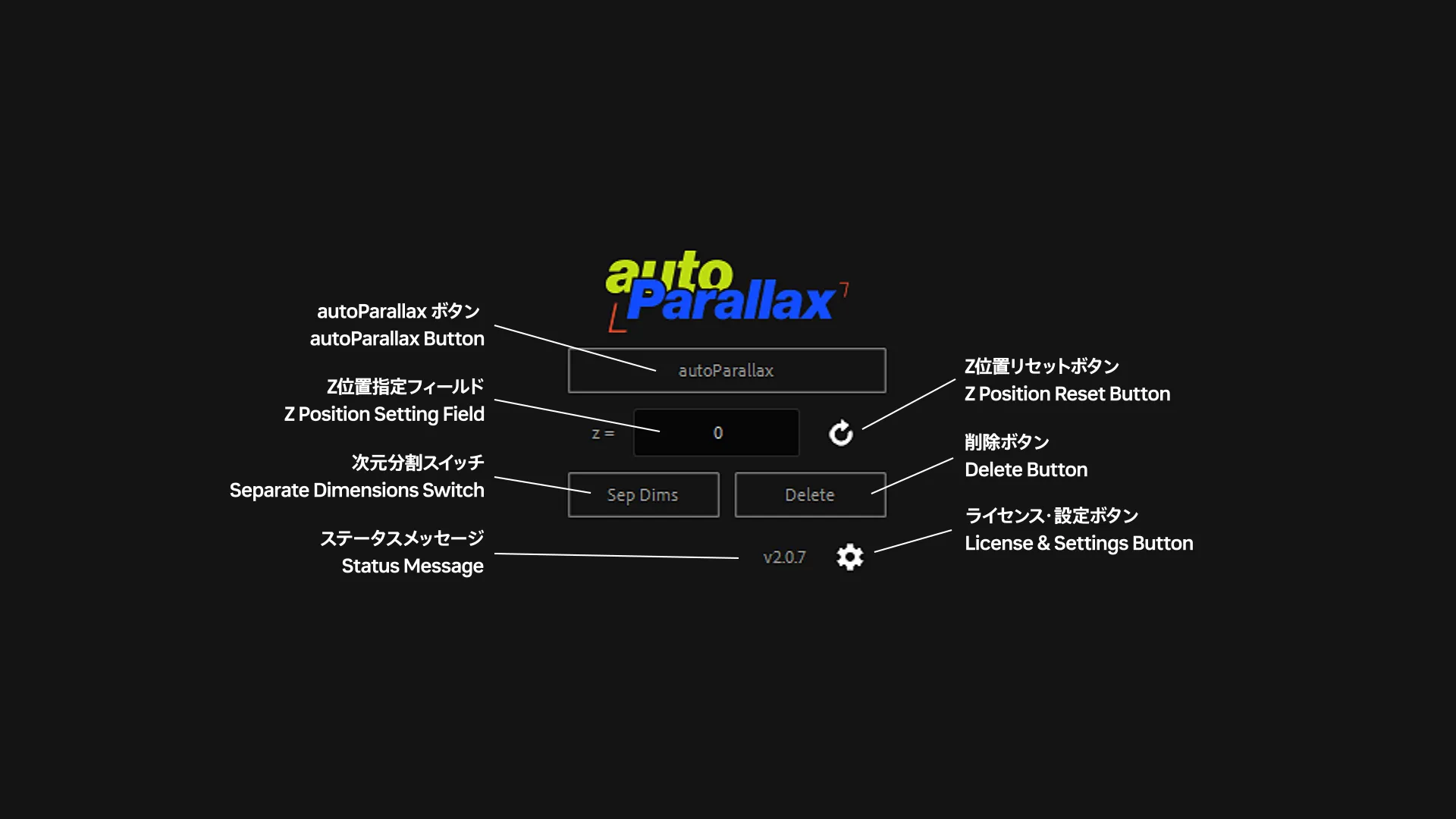
autoParallax button
Click to apply autoParallax to the selected layers. An active camera must exist beforehand.
Layers autoParallax cannot be applied to are skipped, and skipped layers are listed in the status message.
Z position field
Sets the Z position layers get after autoParallax is applied. Expressions work too — for example:
- random(-1024, 512) — random placement between -1024 and 512
- (index-1) * 200 — layers placed 200 apart, starting from layer 1
- 1920 - sourceRectAtTime().width — layers with a smaller apparent width go further back
Z position reset button
Click to reset the contents of the Z position field.
Shift-click to save the field's current contents as the default.
Separate Dimensions switch
Click to toggle Separate Dimensions on the layers' position.
When the position has an expression…
- Separate Dimensions OFF → ON … the Position expression is copied to X Position and Y Position.
- Separate Dimensions ON → OFF … the X Position expression is copied to Position.
With multiple layers selected, Shift-click to invert each layer's current state.
Layers that can't be separated are skipped, and skipped layers are listed in the status message.
Delete button
Removes the autoParallax applied with the autoParallax button.
Layers that aren't autoParallax layers are skipped, and skipped layers are listed in the status message.
Status message
Errors and status updates appear here.
License activation errors
- Activation Failure (E0)
- The license key you entered has the wrong format.
- Activation Failure (E1)
- The Gumroad license key is incorrect.
- Activation Failure (E2)
- Could not reach Gumroad to verify the license key.
- Activation Failure (E3)
- The BOOTH order number is incorrect.
- Activation Failure (E4)
- Could not reach BOOTH to verify the order number.
Settings button
autoParallax settings will be added here in the future.
Shift-click to force the license entry screen to appear.